Mastodon

Ruby redo’s: The Rails router

One of the things that Ruby is famous for is the ease with which you can build Domain Specific Languages (DSLs). The routing DSL in Rails is one of the more recognizable features of the framework and a good example of a Ruby DSL. If you’ve worked with Rails at all you have seen this in config/routes.rb:

MyApp::Application.routes.draw do
  match "/foo", to: "foo#bar"
end

I’ve worked with Rails a fair bit and had a pretty good understanding of how to use the DSL but there is always more to be learned by implementing it (or something like it) yourself. So what are we implementing? We want something that behaves like the ActionDispatch Routeset:

[27] pry(main)> Rails.application.routes
=> #<ActionDispatch::Routing::RouteSet:0x0000000232c588>
[28] pry(main)> Rails.application.routes.draw do
[28] pry(main)*   match "/foo", to: "bar#baz", via: :get
[28] pry(main)* end
=> nil

So we can see that it has a draw method that accepts a block. That block contains a call to the method “match” and accepts a string and a hash of arguments. We called the match method in our code block above and passed that block to the draw methods. When match is evaluated it adds the given route to the set of routes for the application. Which means that if we dig into the routes we should find our path we specified (/foo). Sure enough:

[29] pry(main)> Rails.application.routes.router.routes.each{|r| puts r.path.spec};nil;
/assets
/foo(.:format)
/rails/info/properties(.:format)

As with most things in Ruby, its actually surprisingly little code to get such a thing working:

class RouteSet

  def initialize(routes = {})
    @routes = routes
  end

  def match(path, options)
    @routes[path]= options
  end

  def draw(&block)
    instance_eval &block
  end

  def to_s
    puts @routes.inspect
  end

end

We can play with it in Pry:

mike@sleepycat:~/projects/play$ pry -I.
[1] pry(main)> load 'routes.rb'
=> true
[2] pry(main)> routeset = RouteSet.new
{}
=> #<RouteSet:0x1561598>
[3] pry(main)> routeset.draw do
[3] pry(main)*   match "/foo", to: "bar#baz", via: :get
[3] pry(main)* end
=> {:to=>"bar#baz", :via=>:get}
[4] pry(main)> routeset.to_s
{"/foo"=>{:to=>"bar#baz", :via=>:get}}
=> nil

The secret DSL sauce is all in the draw method. Notice the ampersand in front of the block parameter:

  def draw(&block)
    instance_eval &block
  end

That ampersand operator wraps an incoming block in a Proc and then binds it to a local variable named block. The same operator is used to reverse that process, turning the contents of the block variable from a Proc back into a block. That block is then fed into instance_eval which evaluates the block in the context of the current object. The net effect is the same as if you had just written this:

  def draw
    match "/foo", to: "bar#baz", via: :get
  end

This process of taking a block of code defined somewhere and evaluating it in some other context is the key to DSLs in Ruby. Understanding the ampersand operator and its conversion between blocks and Procs is really important since this is really common in Ruby code. While is may be common, its not cheap. All that “binding to variables” stuff can be slow so in those moments where you care about speed you will want to use this instead:

  def draw
    instance_eval &Proc.new
  end

Playing with this stuff has really helped my understanding of both Ruby and Rails. I hope it helps you too.
Ruby redo’s: IRB

I have come to the realization that the best thing you can do to advance your Rails knowledge is to get better at Ruby. Rails development tends to keep you in one particular corner of the language. To see the other parts you really need to step off Rails’ golden path and try writing something from scratch yourself.

To push myself into some interesting territory I have taken to creating toy implementations of some of the programs I use but have never really understood the internals of. Every time I do this I find I learn something new… sometimes something big, sometimes something small.

One of the small ones actually started with switching from IRB to Pry, and seeing the mind blowing simplicity of Josh Cheek’s example Read Evaluate Print Loop (REPL):

loop do
  puts eval gets
end

When he showed that I nearly fell out of my chair. I’ve been using the Rails console for years now and had never really stopped to consider how it actually did what it does. Obviously IRB is a bit more more involved than a one-liner and a gemspec but this is one of those magic code examples that gets the concept across with searing clarity.

A learning opportunity is not far off either since its not long before you will get the urge to improve it after fat-fingering something and the having it exit. If you don’t know about Ruby’s Exception hierarchy, or like me needed a reminder because you have spent to much time with Rails, try adding some error handling catching the Exception class:

loop do
  begin
    puts eval gets
  rescue Exception => e #Not a good idea!
    puts e.message
  end
end

Of course you will soon realize that you can’t end the program since it turns out that Kernel#abort just calls Kernel#exit and that actually exits the program by raising a SystemExit Error… which we just caught. Oops.
After discovering the joy of Kernel#exit! and doing some reading about the Exception hierarchy (Ahhaa StandardError!) I have to say that redoing even seven lines of IRB taught me a lot.

Getting to know rbenv

I’ve been flirting with switching to rbenv for a while now. Updating RVM recently left me with a strange and annoying error (rubygems_bundler_installer LoadError) that I decided was best fixed by finally moving to rbenv.
The setup was pretty painless but after installing ruby 1.9.3 I thought I would install bundler and get to some coding. So I ran “gem install bundler” which went fine and then “bundle install”. What I got was:

mike@sleepycat:~/projects/capoeiraottawa.ca☺ bundle install
The program 'bundle' is currently not installed. You can install it by typing:
sudo apt-get install ruby-bundler

After a little reading rehashing was suggested and solved the problem:

mike@sleepycat:~/projects/capoeiraottawa.ca☺ rbenv rehash
mike@sleepycat:~/projects/capoeiraottawa.ca☺ bundle install
Fetching gem metadata from http://rubygems.org/......

Since I had no idea what rehash meant, or why I would need to use it. Since rehash seems to be a big thing with rbenv this gave me a good reason to get to know rbenv a little better. It actually works by prepending ~/.rbenv/shims and ~/.rbenv/bin to your path so its binaries are found first. Those binaries are shims based on the rubies and gems in the ~/.rbenv/versions directory. Rehash calls the following instructively named function to do create them:


make_shims ../versions/*/bin/*

The result is a shims directory full of shims. I’ve heard the term used many times but I have to admit I had a pretty shaky understanding of what a shim actually was. Taking a look in the directory helped…


mike@sleepycat:~/.rbenv☺ ls shims/
ast bundle erb gem irb jgem jirb jirb_swing jruby jrubyc rake rdoc ri ruby testrb update_rubygems

Even better is seeing the code:


mike@sleepycat:~/.rbenv☺ cat shims/bundle
#!/usr/bin/env bash
set -e
export RBENV_ROOT="/home/mike/.rbenv"
exec rbenv exec "${0##*/}" "$@"

So all that’s happening is setting an environmental variable and then execute some other command. OK, suddenly its clear what a shim is. As it happens rbenv exec is basically the same thing, setting some variables and then executing the actual command.

So when I install new gems, and those gems have a bin directory I need to call “rbenv rehash” to have rbenv generate new shims for the binaries they contain. Curiosity satisfied.

Installing Ubuntu on a Dell Inspiron 1300

I was recently given an old Dell Inspiron 1300 that had been replaced with one of Dell’s shiny new laptops. The battery life is of course nearly non-existent but functionally it is still in great shape. I figure all it needs is a little love and I will find it a new home.
Installing Ubuntu is so painless that I was very surprised to find that when I was booting the machine from a usb stick (made with usb-creator and a 12.04 iso) it would hang while displaying the loading screen. A quick googling turned up an answer by the ever-helpful Jorge Castro on Ask Ubuntu. His advice; press F6 and add this to grub’s boot parameters:

b43.blacklist=yes

The trouble is the Broadcom wireless BCM4318 LAN card used in this model. The linuxwireless site describes this situation like this:

The Broadcom wireless chip needs proprietary software (called “firmware”) that runs on the wireless chip itself to work properly. This firmware is copyrighted by Broadcom and must be extracted from Broadcom’s proprietary drivers. To get such firmware on your system, you must download the driver from a legal distribution point, extract it, and install it.

So while blacklisting the b43 driver will get the system to boot to the USB stick and get to the installer, it doesn’t solve the problem. I plugged in an ethernet cable and made my way through the rest of the install process as normal. I needed to repeat Jorge Castro’s trick again to boot the laptop after the install. Once it was running and connected to the internet via my ethernet cable I was able to install the firmware by installing the package mentioned on the linuxwireless site:

sudo apt-get install firmware-b43-installer

After that I rebooted again and was thrilled to see that it came up without a fuss. Thinking it was now solved I looked at the network menu only to find yet another headscratcher. The message there: “wireless is disabled by hardware switch”. WTF?
It didn’t take long to figure out was actually going on; FN+F2 had been pressed at some point disabling the wireless entirely. FN+F2 one more time and suddenly wireless was working.

Removing restrictions from PDFs

My girlfriend recently sent me a PDF that she needed to print. She had tried to strip off the printing restrictions using the site I made for that purpose but it hadn’t worked. I quickly realised that my site, which is really a web front end on Ghostscript would not be able to deal with that particular PDF because it was encrypted.

Interestingly, it seems that the Ghostscript project has been making steady progress since I first made that site and can now remove encryption as well as the usual usability frustrations my girlfriend was dealing with; printing and copy/paste restrictions. After a bit of an update it is now cheerfully removing encryption too!

So in the spirit of “do things, tell people”, here is where to go next time you have a difference of opinion with a PDF file: http://pdf-permissions-remover.com/

If you are interested in the code you can find it on Github: https://github.com/sleepycat/pdfstripper

Running a Sinatra app on Glassfish

I’m using JRuby more and more these days to deploy Rails apps. Typically that means creating a war file and deploying it on Glassfish. Yesterday I had request that seemed would be best fulfilled with a Sinatra app rather than Rails. It was my first experience getting Sinatra running on Glassfish and I thought I would share it.

The goal state here is a war file in the Glassfish autodeploy directory and the tool of choice is Warbler.


gem install warbler

With that installed we need to get ourselves set up to warble something. Warbler expects a specific directory structure it turns out, which is pretty typical for those familiar with the Ruby/Rails world:


mike@sleepycat:~/projects/myapp☺ find .
./Gemfile
./config.ru
./lib
./lib/myapp.rb
./Gemfile.lock

Of course you can add a views directory and other stuff in there as well. If you start doing things that Warbler does not expect you might have to add a warble.rb file but since I am using bundler and doing things that fall within warblers expectations I didn’t need one. I had a small number of very simple views, so I chose not to make a views directory and opted for named templates in the main app. To make this a little easier to digest, I’ve stripped out my code and made a basic hello world style app below thats going to be my starting point for next time I do this sort of thing. The three pieces you need are the Gemfile, the rackup file and the app itself.

The Gemfile:


source 'http://rubygems.org'

gem ‘sinatra’

group :development do
gem “sinatra-reloader”
gem “ruby-debug”
end

The config.ru


require 'rubygems'
require 'bundler'
Bundler.require
require 'lib/myapp'

set :run, false #disable the built-in web server
set :environment, :production

run Sinatra::Application

And, sitting inside the lib directory, the application itself with a named template:


get '/' do
@greeting = “Bonjour”
status 200
erb :index
end

template :index do
“<%= @greeting %> from Sinatra”
end
end

If you want to try it out at this point you can launch the app using rackup:


rackup config.ru

With those files in place you are ready to create a war file by running the “warble” command in the project directory. What that does is create a war file with the following structure:


./META-INF
./META-INF/init.rb
./META-INF/MANIFEST.MF
./WEB-INF
./WEB-INF/web.xml
./WEB-INF/Gemfile
./WEB-INF/config.ru
./WEB-INF/lib
./WEB-INF/lib/jruby-rack-1.1.5.jar
./WEB-INF/lib/jruby-core-1.6.7.jar
./WEB-INF/lib/jruby-stdlib-1.6.7.jar
./WEB-INF/lib/myapp.rb
./WEB-INF/gems
./WEB-INF/gems/specifications
...all the gemspecs from the gem dependencies end up here...
./WEB-INF/gems/gems
... All the gems that your project depends on are copied in to this folder ...
./WEB-INF/Gemfile.lock

And now you can drop that war in the Glassfish autodeploy directory and off it goes. My app was simple enough that I didn’t even need to use a database so you might need to add to this a little but it looks pretty simple. In fact every time I end up using Sinatra I come away impressed by how clean and simple it is. Now that I know how to run this on Glassfish, the next time may come sooner than later.

Making Virtual Machines with KVM and Virt-manager

I have used virtual machines for a quite a while now and have drifted back and forth between VMware and Virtualbox. While my initial experience of Virtualbox was good, between the acquisition by Oracle, the TAINT_CRAP thing and generally finding it slow and sometimes overly complicated, I thought I would explore some other options. Having recently discovered my laptop supports hardware virtualization, I thought I would try out KVM.

KVM stands for Kernel-based Virtual Machine and Ubuntu’s documentation sums up the expected uses nicely; “Ubuntu uses KVM as the back-end virtualization technology primarily for non-graphic servers”. So while this is definitely created with servers in mind, I figure I will explore using it as a Virtualbox replacement and see how that goes.

So after enabling virtualization in my BIOS I installed all the packages:


sudo apt-get install virt-manager qemu-kvm libvirt-bin ubuntu-vm-builder bridge-utils

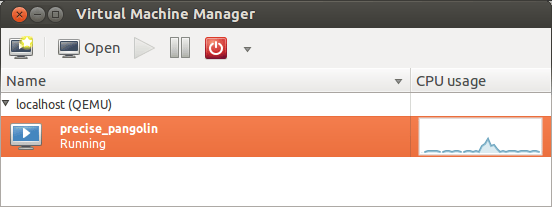
The first thing I learned after starting virt-manager is that KVM is using QEMU as its processor emulator. This becomes obvious when you launch virt-manager and notice that it can’t connect to QEMU on localhost.
To get that working just add yourself to the libvirtd group. I did it manual style:


sudo vim /etc/group

and add yourself to the group like so:


libvirtd:x:128:mike

After that you will need to logout and log back in (restarting works too) and you should see localhost(QEMU) in the virt-manager GUI indicating that a connection has been made.

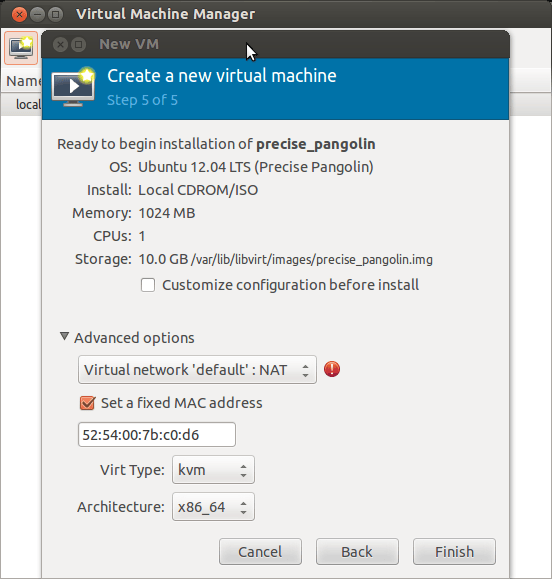
The process of setting up a virtual machine is similar to what you would find in VMWare or Virtualbox. Just click the “Create new virtual machine” button and its pretty self explanatory. One thing that stood out as a little concerning is an little red error icon when setting up the network config.

If you mouse over it, it says “could not initialize HAL for interface listing”. HAL of course has been deprecated and removed from Ubuntu (and replaced by Udev) so its not a surprise that it can’t be found. I wasn’t sure what to make of this but it turns out not to be an issue; the VM boots up happily and is able to sort out a network connection just fine.

HAL error in virt-manager
I am curious to see what it will be like to work with this for a while. Particularly doing things like using the VM as a server of various kinds which is terribly clunky in with Virtualbox. Well I still have lots of tinkering to do but this is enough to get the experiment underway.

Getting Sikuli running on Ubuntu

I have been wanting to play with the automation tool Sikuli for a while now. The few minutes I have dedicated to it have ended in frustration and promising myself that I would sit down and make a serious attempt at it some evening soon.

That evening finally happened. My attempts at the simplest script had ended each time with the error:


[error] Stopped [error] Error message: Traceback (innermost last): (no code object) at line 0 SyntaxError: ('future feature with_statement is not defined', (' ', 1, 6, ''))

A little duckduckgoing revealed that the problem is that the Ubuntu/Debian repositories have a old version of Jython which is causing Sikuli problems. It took a little experimentation (and upgrading both Sikuli and Jython) but this is what got my Sikuli script working:


wget -O jython_installer-2.5.2.jar http://downloads.sourceforge.net/project/jython/jython/2.5.2/jython_installer-2.5.2.jar?r=http%3A%2F%2Fwiki.python.org%2Fjython%2FDownloadInstructions&ts=1331868765&use_mirror=voxel

java -jar jython_installer-2.5.2.jar #run through the installer, I installed it into my home directory...

sudo ln -s /home/mike/jython2.5.2/jython /usr/local/bin/jython #then I created a link to it in my path

sudo apt-get install libcv2.1 libcvaux2.1 libhighgui2.1 # install some of the computer vision libraries Sikuli uses

Once that setup was done, I also downloaded and unzipped the latest version of Sikuli and then ran the script to start the ide:


Sikuli-X-1.0rc3 (r905)-linux-x86_64/Sikuli-IDE/sikuli-ide.sh

And it worked! Now I can finally experiment!

Sqlite: Failed to build gem native extension

I just stumbled across this error in mid-yak-shave for one of my projects. While trying to get my app up and running to test something I get the usual native extensions whining:

Installing sqlite-ruby (2.2.3) with native extensions
Gem::Installer::ExtensionBuildError: ERROR: Failed to build gem native extension.

/home/mike/.rvm/rubies/ruby-1.9.2-p290/bin/ruby extconf.rb
checking for main() in -lsqlite… no
checking for sqlite.h… no
*** extconf.rb failed ***
Could not create Makefile due to some reason, probably lack of
necessary libraries and/or headers. Check the mkmf.log file for more
details. You may need configuration options.

After a you see this sort of thing a few times you pretty instinctively bang out the command:

sudo apt-get install libsqlite3-dev

I was pretty takenaback to get the same error after installing the dev libraries. It turns out that I was installing the gem “sqlite-ruby” when I needed “sqlite3” is what you need if you are using Ruby 1.9.2.

Installing Crayon Physics Deluxe on Ubuntu Natty

I was excited to see Crayon Physics Deluxe included in the latest edition of the Humble Bundle. When I downloaded it I was a little thrown off when I realized that I was not getting a .deb file (which would handle dependencies) but just a compressed tar archive. The install was not exactly intuitive so I thought I would make a note of it here for others.
I extracted the CrayonPhysicsDeluxe folder that is in the tar archive into my home directory.
Then I opened a terminal window (alt + ctrl + t) and since one of the files in the folder was called launcher I decided that was a good place to start. I tried to run it and got the following error:

mike@sleepycat:~/CrayonPhysicsDeluxe$./launcher
./launcher: error while loading shared libraries: libmikmod.so.2: cannot open shared object file: No such file or directory

It turns out that libmikmod and another library need to be installed to get this game up and running…

sudo apt-get install libmikmod2 libsmpeg0

You will also need to make the file “crayon” in the CrayonPhysicsDeluxe folder executable as well:

mike@sleepycat:~/CrayonPhysicsDeluxe$ chmod +x crayon

I can’t remember if I had to chmod the launcher file as well, but if you run “ls” on ~/CrayonPhysicsDeluxe launcher and crayon should both be green.

Happy drawing!