Mastodon

Haunted by Flash 7

For some reason my version of Firefox seems to be haunted by the ghost of Flash 7. I have installed Flash 9 several times now but today when I tried to watch a video on http://www.expertvillage.com I saw nothing but a black square. Thinking it was loading I gave it a few seconds and when nothing had changed a right click confirmed my worst fears as the text “about flash player 7” appeared at the bottom of the menu.

What does it want with me? Is it trying to tell me something?

A little googleing revealed that /home/username/.mozilla/plugins is not the only place that Firefox looks for plugins. It also keeps them in /usr/lib/firefox/plugins/

After terminating the flashplayer.xpt and libflashplayer.so files that were resident in that folder and copying in new ones freshly extracted from the tar.gz file on adobe’s site I can finally watch videos again. I think I finally exorcised the beast.

Flash 7 begone! The power of root compels you!

Ubuntu hearts the Canon A70

One of the things that is often lost in all the well deserved hatred of Microsoft, is that they have spent millions of dollars on studying users and has produced something that, even with all its foibles, is pretty damn easy for most people to use.

As the spoiled beneficiary of all that study and development time I, and every other Windows user, have some pretty high expectations when it comes to having our computers just sort themselves out and do the right thing.

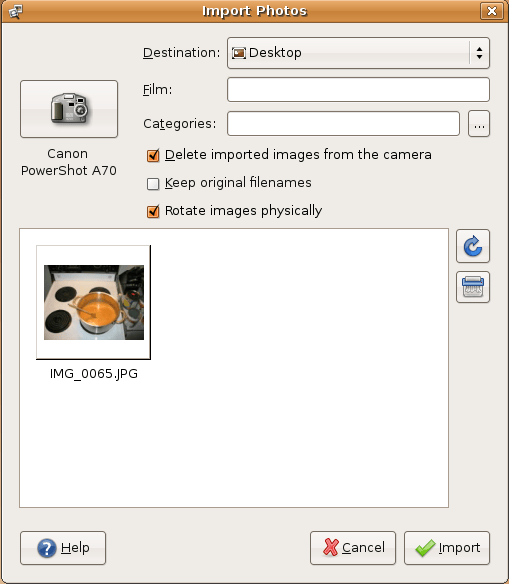
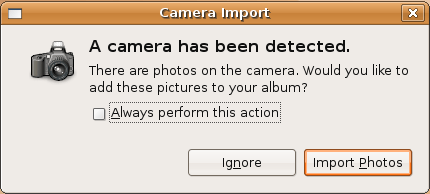
It seems that Mark Shuttleworth and the Ubuntu crew have been paying close attention to the rather expensive lessons that Microsoft has had to learn. I switched to Ubuntu in December and by and large it has lived up to its promise of being easy to use. Case in point; I borrowed a Canon A70 camera so Kathrine and I could take some pictures this weekend. I plugged it in and was greeted with this:

Ubuntu picture import

The Import Photos dialogue does exactly what you think it is going to do, and I actually find it faster and  less complicated than the Photo import wizard found in Windows.

Importing pictures from the Canon A70

Ubuntu’s (and Linux in general’s) weak spot is that most companies only create drivers for Windows and leave Linux and Apple users to fend for themselves. This can make it a little dicey when you try connecting exotic things to your Linux system. In this case, it correctly identified the camera, dumped the images onto my desktop and cleaned off the memory card. In other words, everything I was expecting, and nothing I wasn’t. Nice!

Netstat

Netstat is one of those programs that most computer people use but very few understand. Because I am one of those people, I decided to write this to change that. Netstat displays a listing of network connections that and their status which can be very useful for anyone concerned with the security of their machine. Not only does it tell you who your machine is talking to currently but it also tells you if there are programs listening to accept connections from foreign computers. Typically the output of the command is pretty alarming because of the startling number of connections and pretty arcane descriptions that go with them:

C:\>netstat -ano

Active Connections

Proto Local Address Foreign Address State PID
TCP 0.0.0.0:135 0.0.0.0:0 LISTENING 1104
TCP 0.0.0.0:445 0.0.0.0:0 LISTENING 4
TCP 0.0.0.0:1025 0.0.0.0:0 LISTENING 1336
TCP 0.0.0.0:2996 0.0.0.0:0 LISTENING 2912
TCP 0.0.0.0:3172 0.0.0.0:0 LISTENING 2912
TCP 0.0.0.0:3173 0.0.0.0:0 LISTENING 2912
TCP 0.0.0.0:5000 0.0.0.0:0 LISTENING 1672
TCP 74.104.77.xxx:139 0.0.0.0:0 LISTENING 4
TCP 74.104.77.xxx:3071 12.120.5.14:80 TIME_WAIT 0
TCP 74.104.77.xxx:3172 72.14.207.99:443 CLOSE_WAIT 2912
TCP 74.104.77.xxx:3173 72.14.205.83:443 CLOSE_WAIT 2912
TCP 127.0.0.1:2995 0.0.0.0:0 LISTENING 2912
TCP 127.0.0.1:2995 127.0.0.1:2996 ESTABLISHED 2912
TCP 127.0.0.1:2996 127.0.0.1:2995 ESTABLISHED 2912

Probably the most confusing column is the local address column. Your computer always has at least two (and sometimes more) IP addresses that it will answer to. The above example shows that the computer will answer to 74.104.77.xxx and 127.0.0.1 (the computers equivalent of “me”). The three addresses shown have different and special meanings.

127.0.0.1:port#programs listening on this address will accept connections originating from only the local computer.

74.104.77.xxx:port#programs listening on this address will accept connections originating from computers on the network/internet.

0.0.0.0:port#programs listening on this address will accept connections from anywhere, local or remote, sent to any of the addresses the computer will answer to (in this case 127.0.0.1 and 74.104.77.xxx).

The State column refers to the state of the TCP connection. You won’t see this for UDP connections because the don’t have state like TCP does. Here is the list of options (plagiarised from some site I don’t remember):

LISTEN – represents waiting for a connection request from any remote TCP and port.

SYN-SENT – represents waiting for a matching connection request after having sent a connection request.

SYN-RECEIVED – represents waiting for a confirming connection request acknowledgment after having both received and sent a connection request.

ESTABLISHED – represents an open connection, data received can be delivered to the user. The normal state for the data transfer phase of the connection.

FIN-WAIT-1 – represents waiting for a connection termination request from the remote TCP, or an acknowledgment of the connection termination request previously sent.

FIN-WAIT-2 – represents waiting for a connection termination request from the remote TCP.

CLOSE-WAIT represents waiting for a connection termination request from the local user.

CLOSING – represents waiting for a connection termination request acknowledgment from the remote TCP.

LAST-ACK – represents waiting for an acknowledgment of the connection termination request previously sent to the remote TCP (which includes an acknowledgment of its connection termination request).

TIME-WAIT – represents waiting for enough time to pass to be sure the remote TCP received the acknowledgment of its connection termination request.

CLOSED – represents no connection state at all.

Hopefully that will help make sense of the output netstat gives. It helped me at least :)
X11 forwarding over SSH

I recently got my old computer up and running with Gentoo Linux with extensive help from one of my coworkers, who is an avid Gentoo fan. Now that it is back in my basement I am starting to play with it remotely.

One of the cool things about the windowing system on Linux (called X11 or just X) is that it is a server and considers the program windows you have opened as clients. There is nothing saying that the server your client program window is getting its information from has to be the local computer you are sitting in front of.

Of course, no proper Linux aficionado would send this kind of thing across the internet without encryption, so the X windows are sent through an SSH tunnel. The settings (on Gentoo at least) were pretty simple. In the /etc/ssh/ssh_config file change this:

# Host *

# ForwardAgent no

# ForwardX11 no

To this:

Host *

# ForwardAgent no

ForwardX11 yes

And then in the /etc/ssh/sshd_config file change:

# X11Forwarding no

to

X11Forwarding yes

Once you have done that restart the sshd service with the command:

sleepycat ~ # /etc/init.d/sshd restart

* Stopping sshd … [ ok ]

* Starting sshd … [ ok ]

Now you are ready to ssh to the box. Use the –X flag to enable X11 forwarding and the –l option to specify the username you are connecting with:

sleepycat ~ # ssh –X –l mike 192.168.1.1

When you are connected you can issue a command like “firefox &” and marvel as firefox opens with your search history and bookmarks from the remote computer.

When I showed this off at work I was asked “cool, but what are you going to use it for?”

I guess if I ever wanted an undetectable way to surf porn at the office I could use it for that…