Mastodon

The budding business case for linux

Wolfire games has teamed up with some of the other top indie game developers and put together a cross platform game bundle that is selling like hotcakes. It includes the games World of Goo, Aquaria, Gish, Lugaru and Penumbra. Their “pay what you want” game bundle has made them half a million dollars (and counting) to be split amongst the developers from the participating studios as well as selected charities (EFF and Child’s Play). While the sale of the bundle is generating some good money, it’s also generating some fascinating statistical data:

Windows ~90% of the market 65% of donations 52% of revenue
Mac ~6% of the market 21% of donations 25% of revenue
Linux: ~1% of the market 14% of donations 23% of revenue

There is plenty of conjecture about why they numbers shake out that way but, pretty much any way you look at them there it is looks like a pretty solid business case for supporting Mac and Linux. Until recently there was precious data about what it might be like selling into the Linux community. Most simply wrote it off assuming that the ~1% market share was all there was to the story. While not every company will have the same experience as Wolfire, I think that they have proved there is more going on there than the 1% suggests.

This bodes particularly well for Valve and their imminent release of their Steam platform for the Mac (curently in Beta), and their upcoming version for Linux. It will be really interesting to see what kind of numbers they come up with after running Steam across all three platforms. If they are anything like the numbers from Wolfire, the next couple of years are going to be pretty interesting for Linux.

I also wonder if the bundle method could also be harnessed as a broader method of funding Free Software development. Imagine a web of cross promotion where developers with easily monitized software (like a game) include a donation to a less easily monitized project (like a bittorrent client) exactly as was done with the EFF in the Humble bundle. Wolfire has done something inspirational, and shown there are lots of possibilities to explore. Go and support them!

Postgres and Rails – for MySQL people

A little while ago I decided to switch from MySQL to Postgres for my development database. Although I love how command line friendly MySQL is and think group_concat is the bomb, I’ve been burned my MySQL’s loosey-goosey nature and had it corrupt some data on me. I decided that it was time to switch to Postgres. The transition was a little aggravating at times but it doesn’t take long to get used to it. Installing Postgres is easy enough on Ubuntu:

mike@sleepycat:~$ sudo aptitude install postgresql postgresql-server-dev-8.4

If you need to start at new Rails project you can specify Postgres right from square one:

mike@sleepycat:~/test$ rails myapp -d postgresql

After installing the database I started to look for the gems that provide the driver. I found myself sorting through a bewildering number of gems. “Postgres”, “postgres-pr”, a few minutes search turned up several options each of which proved to be the wrong thing. The gem you need is actually called ruby-pg and is written by a group of people that includes the actual creator of the Ruby language, Yukihiro Matsumoto. Although it is called ruby-pg if you ever want to find it on the internet, you install it using the name pg:

sudo gem install pg

The next stumbling block for me was my assumption that the naming of the Rails adapter would be similar to MySQL. Since adapter: mysql is what I have been using in my project already, I assumed adapter: postgres would be fine. It’s not.

development:
adapter: postgresql
database: myapp_development
username: postgres
password: password
host: localhost

Coming from MySQL, it took a fair bit of reading to collect the Postgres equivalent of all the commands I use most often. Just to save you some looking here is my “Cole’s Notes” version:

Setting a password for the default user ‘postgres’:

mike@sleepycat:~$ sudo -u postgres psql postgres
[sudo] password for mike:
psql (8.4.2)
Type “help” for help.
postgres=# \password postgres
Enter new password:
Enter it again:

Create a database as user ‘postgres’:

mike@sleepycat:~$ sudo -u postgres createdb myapp_development

Drop a database as user ‘postgres’:

mike@sleepycat:~$ sudo -u postgres dropdb myapp_development

Get to the command line of the database myapp_development as user ‘postgres’:

mike@sleepycat:~$ sudo -u postgres psql myapp_development

Load the file ‘pgdump.sql’ into the myapp_development database as the user ‘postgres’:

mike@sleepycat:~/$ sudo -u postgres psql -f pgdump.sql myapp_development

Dump a Postgres database to a file:

mike@sleepycat:~/$ sudo -u postgres pg_dump myapp_development > ~/myapp_dev_dump.sql

Show tables:

postgres=# \dt

show a table:

postgres=# \d tablename

quit:

postgres=# \q

Thats what worked for me. In general I feel like using postgres is forcing me to write more portable code. Pretty much anything I write in Rails that runs in postgres will run on MySQL, but the reverse is really not true. Little things like using ‘1’ for true. MySQL is fine with that but for Postgres with a real boolean datatype, true is true. 1 is not. I stumbled arcoss that when I was using validates_acceptance_of. I feel like its also forcing me to write better SQL as well. If you’ve written a bunch of “find_by_sql” in an existing app you might not appreciate its pickyness though. However once the initial pain of the switch passes, Postgres is pretty great.

Ubuntu One’s new Music Store

Ubuntu's Music store

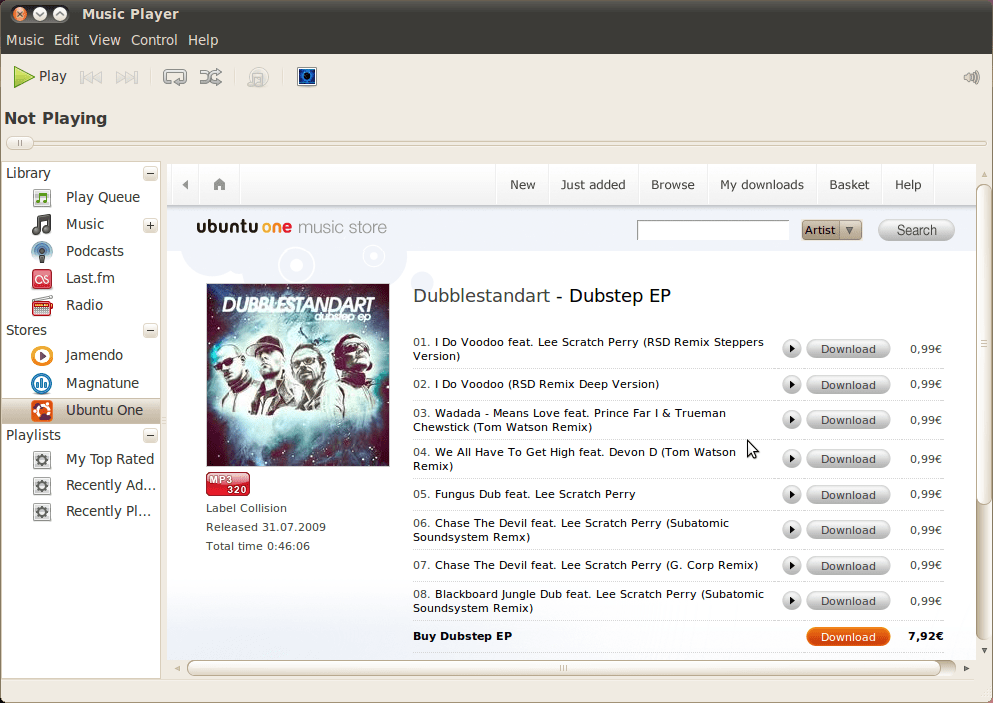
Well I’m not sure why it’s here, but it is. Ubuntu launches its music store with the upcoming release of Lucid Lynx. It’s easy enough to find, as its integrated into Rhythmbox. I was lukewarm on the idea when I heard it mentioned a while back, and after playing with it a little, not much has changed. I hate to rain on the parade because Lucid Lynx is looking like a REALLY good release, but this music store feels really tacked on.

While I was able to find pretty near every obscure artist I searched for, searches for Radiohead and Madonna turned up nothing. Where services like Magnatune and Jamendo definitely reflect the values of the Linux community in the sense that both make their ethical business practices (like how they deal with artists) a centre-piece of their business and offer music in open, unpatented formats (lossless Flac and Ogg Vorbis as well as others), the Ubuntu service seems out of step.

Apart from presumably supporting Ubuntu (a worthy thing in and of itself) you can only guess to whom the money might go when you buy a track. All of the albums I looked at were only available in the patented MP3 format, a very strange choice for a company with such powerful a voice in the FOSS community. Doubly strange when Ubuntu doesn’t even play MP3s by default because of the patents involved.

On top of that, while the quality of the files varied between 320 and 192, the price remained steady at .99 euros. Shouldn’t the price and the quality be connected? My guess is that this is really just an Ubuntu front end on someone else’s music service (it turns out it is). If it isn’t, it sure feels that way. In the end I suppose any revenue stream is a good revenue stream, but in my opinion, Ubuntu really needs to rethink this one and bring it in line both with the values of the community and with the othewise excellent work they are doing in other areas.

Ubuntu Lucid Lynx Beta 2

Beta 2 was posted 5 days ago and I am just getting to giving it a spin. The amount of polish on this release is looking seriously impressive. There are still issues with ACPI when you run it in VirtualBox though. I was assuming those would be ironed out by now.

The UI design team at Ubuntu caused a bit of a kerfuffle when they chose to move the min/max/close buttons to the left side of the application windows. Its a change that I find somewhat annoying but one that it has been decided that will be included in the final release. Given that it is so easy to change back, its really not worth getting upset about. If you don’t like it, slap this in the nearest command line:

mike@sleepycat:~$ gconf-editor

The Gnome configuration editor will come up and under /apps/metacity/general/button_layout you can set the buttons up any way you like. The old setting was menu:minimize,maximize,close.

The new installer is looking really impressive:Over all everything is looking rounder, sleeker and sexier. The new purple colour scheme is really nice. I’m not sure yet what I think of the music store that is included in this version or the App store.

While I am happy to see Ubuntu taking this mainstream, I am a little wary of how well some of these commercial ventures will mix with the underlying philsophy. A big part of what makes Linux generally more secure than Windows is the fact that there is no monetary barrier to updating to the lastest version of whatever software. Can you sell applications without losing that? Not sure yet.

For those like myself running VirtualBox OSE 3.0.8; you will need to get a newer version of the Virtualbox Guest additions iso.

Lucid Alpha 3 in Virtualbox.

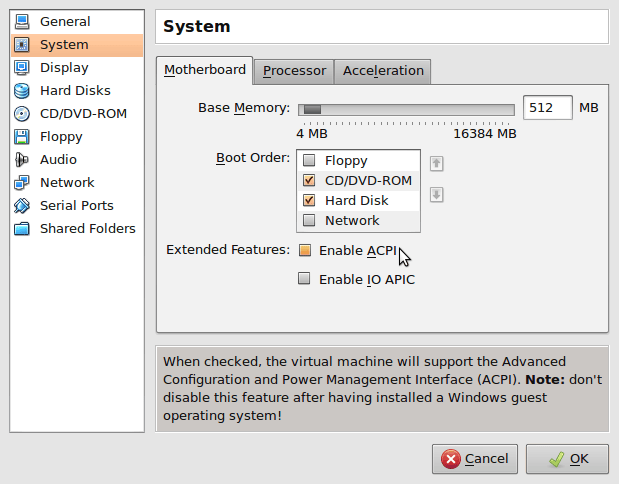
Everything I am hearing about the upcoming Lucid Lynx release of Ubuntu sounds really great. I just grabbed Alpha 3 from the Ubuntu site and was a little dissappointed to see it hang as soon as I selected “Install Ubuntu”. The fix is to turn off the ACPI option in the system settings for your VM.

The side-effect of this is that the virtual machine will no longer close the window and disappear when you shut it down. C’est la vie.

From there the installer started up fine, but it hung again when I tried to update the installer. When I skipped the update it installed without any other problems. Thats what worked for me on Virtualbox 3.08 OSE.

UPDATE: This issue still seems to be effecting the new Lucid Beta 1…

Setting up terminal windows for Rails development

Even though Netbeans make things like the Rails development log and the database connections pretty easy to get to, I still have a pretty strong preference for the command line. When I am coding I almost always have a few terminal windows open and stretched nice and big; generally one for mysql, one for the Rails development log and often a third for the Rails console in case I want to experiment with the code I am writing.

The down side to this set up is just that; the set up. Every day I type in the same stuff… mysql -u root blah blah blah.

So last night, after an ill advised post dinner coffee, I set about scripting my morning Rails ritual and on the way learned a bunch about the terminal.

Gnome terminal is the proper name for the program that resides under Applications > Accessories > Terminal. A quick look at the man pages give a pretty nice set of options to play with but I found they required a bit of trial and error to get right.

Cut and paste the ones you want into custom launchers.

Launching Mysql and getting a prompt on a specified database:

gnome-terminal  -e “mysql -u root -ppassword -D myapp_development”

Thats no typo! There can’t be any space between the -p option above and the actual password!

Launching a window with the Rails development log (with a specified Rail environment):

gnome-terminal  –working-directory=/home/mike/projects/myapp -e “script/server -e mikes”

That one is great for me because I am rapidly becoming sick of typing in stuff for custom Rails environments. Now I don’t need to!

Those are pretty fun, but the ultimate in convenience for me would be to have a single tabbed terminal window with everything. So why not combine the two into a single command?

gnome-terminal –geometry=174×46+50+50 –tab-with-profile=Default –title=”Mysql” -e “mysql -u root -ppassword -D myapp_development” –tab-with-profile=Default –working-directory=/home/mike/projects/myapp –title=”Server” -e “script/server -e mikes” –tab-with-profile=Default –working-directory=/home/mike/projects/myapp –title=”Console” -e “script/console mikes”

This is a doozie but it means that my whole morning Rails set up ritual has been reduced to a single click on a launcher. Sweet!

Missing images in JavaFX on Ubuntu Karmic

Last weekend was spent installing Ubuntu Karmic on my laptop. Because of all the programming stuff I am working on it just made sense even though I am already missing a few of my favourite Windows programs. As soon as I got Netbeans set up I tried running a JavaFX application I had been working on. The stage icons and the images I had loaded in were nowhere to be seen. I gave this a few days to percolate and sat down this evening to sort it out. I started out thinking that it might be a problem with the file paths being different on *nix but a little experimentation showed that paths were not the problem. It took a little reading before I got a reminder; Sun is not the default JVM on Ubuntu! Grrrr.

After switching to Sun Java away from Open-JDK all my images and stage icons were loading happily and my JavaFX app runs just like it did on Windows. Here is the command:

mike@sleepycat:~$ sudo update-alternatives –config java
There are 2 choices for the alternative java (providing /usr/bin/java).

Selection    Path                                      Priority   Status
————————————————————
* 0            /usr/lib/jvm/java-6-openjdk/jre/bin/java   1061      auto mode
1            /usr/lib/jvm/java-6-openjdk/jre/bin/java   1061      manual mode
2            /usr/lib/jvm/java-6-sun/jre/bin/java       63        manual mode

Press enter to keep the current choice[*], or type selection number: 2
update-alternatives: using /usr/lib/jvm/java-6-sun/jre/bin/java to provide /usr/bin/java (java) in manual mode.

Ditch VMware. Don’t look back.

After working in Ubuntu running in VMware for my Ruby on Rails development over the last few months I have come to the realization that VMware is really annoying.

First, I am tired of playing Russian roulette with their poorly chosen keyboard shortcuts. I have inadvertently rebooted the whole VM with a Control+R intended for the Firefox inside the VM more times than I care to admit. Much wailing and gnashing of teeth followed.

Equally poorly planned, but less damaging is their co-opting of the standard undo shortcut Control+Z. The fine folks at VMware decided to use that to suspend the VM which you will eventually discover after flipping between the VM and the host OS and then trying to undo something…

While the fact that switching between the guest and the host OS a few times makes their network connection crash and their seeming inability to make their shared folders work with Ubuntu in any sane way (hopefully fixed now…), both rank on my list of frustrations, the worst by far is the mouse.

I was hoping to get the mouse working better once the VMware tools were installed but that never ended up being the case. For whatever reason after the install I still had to explicitly click in the VM to get it to grab the mouse (or press Control+G… Don’t get me started…) and Control+ALT to release it. I suppose I might have been able to figure out some sort of fix for that had it really caused some acute aggravation, but for the most part it remained as a low level annoyance.

The acute aggravation came from the fact that VMware assumes that anytime you move your mouse anywhere near the top of the screen that you would like to jump out of the VM and access their menu.

Without fail this completely screws up the mouse and I have to try to click several times inside the VM to convince it to grab the mouse again.

Well I am pleased to tell you there is a fix for all of that. Virtualbox. No stupid shortcuts, is actually capable of running compiz-fusion, shared folders that actually work (sudo mount -t vboxsf sharename /mnt/share is all thats needed after you set up your share, exactly what a *nix user would expect), and a single key (the control button on the right side of the keyboard) that releases you from the VM. As a bonus it even seems faster than VMware. The best part is that you don’t have to go trawling on piratebay to get a copy, since it is open source and freely available from their website.

Ditch VMware. Don’t look back.

Holding the line

“On average, Office users spend more 1-on-1 time with Office than with their spouse”

This (unfortunately unsourced) gem comes from Jensen Harris’s presentation on the creation of the new “ribbon” based interface in Office 2007. While I think that quote probably says quite a bit about what is wrong with the world, it also tells you that how humans interact with computers is a very big deal. Ones relationship with the tools of their trade in any line of work is going to be necessarily intense and emotional. As software becomes more of a requirement than an option in most lines of work, companies like Microsoft and Apple spend staggering amounts of money studying people interacting with their software.  “Hundreds of millions” were supposedly spent on developing the new interface for Office 2007 according to Harris.

For all the fanfare, the ribbon is just the latest reshuffling of the same windows, icons, menus and folders that were developed at Xerox PARC in the early seventies. The problems in interface design today are largely to do with programs so rich with features that their menus are beginning to look like a rats nest of pop-ups, fly-outs, toolbars, menus, sub-menus and sub-sub-menus (and often sub- sub-sub-menus). Harris says that the research his team has done showed that users felt a loss of control and a loss of a sense of mastery.

I can’t help but wonder if some of these feelings are common to all GUI programs, not just Office. Most people seem to think of the Command Line Interface as the absence of an interface, and are terrified by the monochrome starkness and requirement that at least a few commands are known before the user can start. The first GUI based personal computers (Apple’s Lisa and Macintosh) were a rejection of the CLI and a way to open up computing to a wider audience.

“No command line interface was available on the Macintosh; you talked to it with the mouse, or not at all. This was a statement of sorts, a credential of revolutionary purity. It seemed that the designers of the Mac intended to sweep Command Line Interfaces into the dustbin of history.”    ~~ Neal Stephenson – In the Beginning was the Command Line

The problem was that to make these new GUI’s understandable to users the developers created the now ubiquitous “desktop metaphor”. Users would know what to do in this new virtual world because it would mirror aspects of the physical world. Everything in it would be presented to them as objects on a virtual desktop with folders to organize. However users don’t experience their desktops as a metaphor, for them they are real:

“Back in 1984, explanations of the original Mac interface to users who had never seen a GUI before inevitably included an explanation of icons that went something like this: “This icon represents your file on disk.” But to the surprise of many, users very quickly discarded any semblance of indirection. This icon is my file. My file is this icon. One is not a “representation of” or an “interface to” the other. Such relationships were foreign to most people, and constituted unnecessary mental baggage when there was a much more simple and direct connection to what they knew of reality.” ~~John Siracusa – About the Finder…

Computer use in GUI environments is exploratory, tasks are completed by hunting down menu items and unearthing option dialogs, navigating an environment, like a rat navigating a maze for a piece of cheese, that, for them, might as well be real. The reward at the end of the process might be empowering, but the path to the reward is not.

Command line interfaces offer a very different experience for the user. In many cases users can accomplish the same task but the experience of the path to that end result is very different. The CLI sets up a different kind of relationship with the user, one that also echoes the users real world experience; a master/slave relationship. Because of this, working at the command line is empowering: you issue a command, the computer does it. If I type “aptitude install firefox”, aptitude (The program Ubuntu uses to add and remove programs) installs Firefox. Commands like “su” and “sudo” only reinforce the perception of the machines subservience, allowing you to override even its objections. It’s a very different feeling than fishing through a folder tree trying to find “setup.exe” so you can double click on it and then click “next” a half dozen times.

Words like “power” and “control” tend to come up a fair bit in where the command line is discussed, but although there are plenty of good things to say about GUI’s those are not the first things that spring to mind when describing your feelings about using one. Though there are some that dismiss use of the command line as a major usability roadblock, hopefully as the use of GNU/Linux based systems grows, more people will recognise that it is an efficient and empowering way to get things done. When that happens even normal people will find XKCD funny…

VMware tools and shared folders in Unbuntu 9.04 Jaunty

The latest version of Ubuntu does indeed have some sexy new features, new notifications, eucalyptus cloud support. All around a pretty awesome release. In what I will kindly call a fit of nievete, I decided to upgrade the my VM that I have been using for web development. Although the upgrade from 8.10 to 9.04 went smoothly, the reinstall of VMware tools failed leaving me without any shared folders. So after a little profanity and a lot of googling I thought I would share what got my shared folders back up and running.

First you will want to make sure that you have the headers and other stuff so VMware tools has what it needs to compile everything:

sudo apt-get install linux-headers-`uname -r` build-essential

If you are not running VMware 6.5.2 you will likely be asked where your header files are. 6.5.2 added “experimental” support for Jaunty so it already knows where to look. I was running the server version so my headers were in/lib/modules/2.6.28-11-server/build/include.

If you are running the desktop version you can probably find them here: /lib/modules/2.6.28-11/build/include

What is the location of the directory of C header files that match your running
kernel? [/lib/modules/2.6.28-11-server/build/include]

The first time I tried to install VMware tools, two of the modules failed. I upgraded to version 6.5.2 build 156735 and tried it again and that time only the HGFS module failed with the following error:

CC [M]  /tmp/vmware-config3/vmhgfs-only/page.o
/tmp/vmware-config3/vmhgfs-only/page.c: In function âHgfsDoWriteBeginâ:
/tmp/vmware-config3/vmhgfs-only/page.c:763: warning: ISO C90 forbids mixed declarations and code
/tmp/vmware-config3/vmhgfs-only/page.c: In function âHgfsWriteBeginâ:
/tmp/vmware-config3/vmhgfs-only/page.c:867: error: implicit declaration of function â__grab_cache_pageâ
/tmp/vmware-config3/vmhgfs-only/page.c:867: warning: assignment makes pointer from integer without a cast
make[2]: *** [/tmp/vmware-config3/vmhgfs-only/page.o] Error 1
make[1]: *** [_module_/tmp/vmware-config3/vmhgfs-only] Error 2
make[1]: Leaving directory `/usr/src/linux-headers-2.6.28-11-server’
make: *** [vmhgfs.ko] Error 2
make: Leaving directory `/tmp/vmware-config3/vmhgfs-only’
Unable to build the vmhgfs module.

Fortunately some googling turned up this clever fellow who tells you how to fix the problematic line of code. I did it and am happy to report that it works. Just to make everybody’s lives a little easier I thought I would make the patched code available to save people some time and bother.  You can see the link to it in the code below. So without further ado, here is what you need to do to fix the HGFS. You will need the vmware-tools-distrib folder. I had it laying around from my previous install attempts.

mike@ubuntu:~$ cd vmware-tools-distrib/lib/modules/source/

mike@ubuntu:~/vmware-tools-distrib/lib/modules/source$ rm vmhgfs.tar
rm: remove write-protected regular file `vmhgfs.tar’? y

mike@ubuntu:~/vmware-tools-distrib/lib/modules/source$ wget http://www.dexterchief.com/vmhgfs.tar
–2009-05-03 00:18:25–  http://www.dexterchief.com/vmhgfs.tar
Resolving http://www.dexterchief.com… 67.205.50.232
Connecting to http://www.dexterchief.com|67.205.50.232|:80… connected.
HTTP request sent, awaiting response… 200 OK
Length: 901120 (880K) [application/x-tar]
Saving to: `vmhgfs.tar’

100%[======================================>] 901,120      176K/s   in 5.8s

2009-05-03 00:18:32 (152 KB/s) – `vmhgfs.tar’ saved [901120/901120]

mike@ubuntu:~/vmware-tools-distrib/lib/modules/source$ ls -al vmhgfs.tar
-rw-r–r– 1 mike mike 901120 2009-05-02 23:26 vmhgfs.tar

mike@ubuntu:~/vmware-tools-distrib/lib/modules/source$ chmod 444 vmhgfs.tar

mike@ubuntu:~/vmware-tools-distrib/lib/modules/source$ ls -al vmhgfs.tar
-r–r–r– 1 mike mike 901120 2009-05-02 23:26 vmhgfs.tar

Now that the permissions are set correctly just rerun the install script:

mike@ubuntu:~/vmware-tools-distrib/lib/modules/source$ sudo ./vmware-install.pl

I hope that ends up being useful for somebody.