Mastodon

Installing Ubuntu on a USB stick with QEMU-KVM

The more I learn about QEMU the more uses I find for it. Today I needed to install Ubuntu onto a USB memory stick. My normal process for doing such a thing is simply to create a bootable usb stick using usb-creator with the command:

usb-creator-gtk

What that gives you is a FAT32 formated usb with the Ubuntu installer and an option to “Try Ubuntu”. What I was after was to use the USB stick as a regular hard drive, formatted as normal with EXT4 and install Ubuntu on that. After a little headscratching I realized KVM would be perfect for this. Tell it to use the USB device file as the hard drive and the Ubuntu install ISO as the CDROM. Here is the command:

sudo kvm -hdb /dev/sdb -boot d -cdrom ~/Downloads/ubuntu-12.04-alternate-amd64.iso

The -boot flag identifies the device it should boot from with “d” being the shorthand for the first CD drive while -cdrom allows you to specify an iso to use as a disk. The really cool part of this is the -hdb flag that points to the device file for the USB drive. Slap the enter button and you are off to the races.
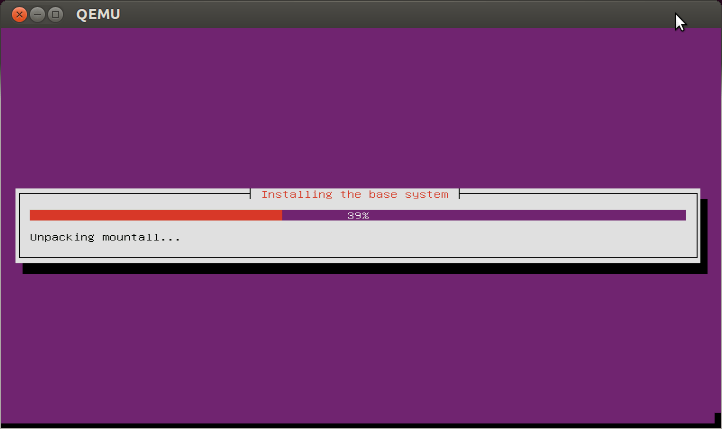
Having the flexibilty to do stuff like this is really awesome and saves me not only time but diskspace too, since I don’t need to keep creating Virtualbox VM’s. I’m going to have fun learning more about this.
Making Virtual Machines with KVM and Virt-manager

I have used virtual machines for a quite a while now and have drifted back and forth between VMware and Virtualbox. While my initial experience of Virtualbox was good, between the acquisition by Oracle, the TAINT_CRAP thing and generally finding it slow and sometimes overly complicated, I thought I would explore some other options. Having recently discovered my laptop supports hardware virtualization, I thought I would try out KVM.

KVM stands for Kernel-based Virtual Machine and Ubuntu’s documentation sums up the expected uses nicely; “Ubuntu uses KVM as the back-end virtualization technology primarily for non-graphic servers”. So while this is definitely created with servers in mind, I figure I will explore using it as a Virtualbox replacement and see how that goes.

So after enabling virtualization in my BIOS I installed all the packages:


sudo apt-get install virt-manager qemu-kvm libvirt-bin ubuntu-vm-builder bridge-utils

The first thing I learned after starting virt-manager is that KVM is using QEMU as its processor emulator. This becomes obvious when you launch virt-manager and notice that it can’t connect to QEMU on localhost.
To get that working just add yourself to the libvirtd group. I did it manual style:


sudo vim /etc/group

and add yourself to the group like so:


libvirtd:x:128:mike

After that you will need to logout and log back in (restarting works too) and you should see localhost(QEMU) in the virt-manager GUI indicating that a connection has been made.

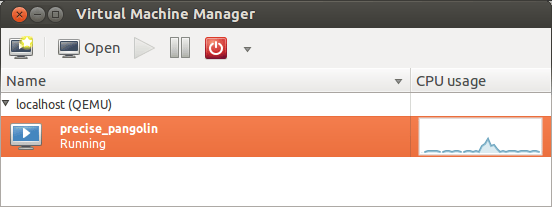
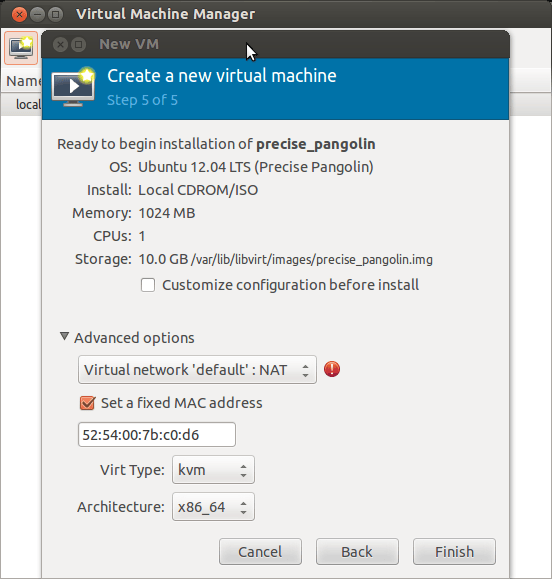
The process of setting up a virtual machine is similar to what you would find in VMWare or Virtualbox. Just click the “Create new virtual machine” button and its pretty self explanatory. One thing that stood out as a little concerning is an little red error icon when setting up the network config.

If you mouse over it, it says “could not initialize HAL for interface listing”. HAL of course has been deprecated and removed from Ubuntu (and replaced by Udev) so its not a surprise that it can’t be found. I wasn’t sure what to make of this but it turns out not to be an issue; the VM boots up happily and is able to sort out a network connection just fine.

HAL error in virt-manager
I am curious to see what it will be like to work with this for a while. Particularly doing things like using the VM as a server of various kinds which is terribly clunky in with Virtualbox. Well I still have lots of tinkering to do but this is enough to get the experiment underway.

Getting Sikuli running on Ubuntu

I have been wanting to play with the automation tool Sikuli for a while now. The few minutes I have dedicated to it have ended in frustration and promising myself that I would sit down and make a serious attempt at it some evening soon.

That evening finally happened. My attempts at the simplest script had ended each time with the error:


[error] Stopped [error] Error message: Traceback (innermost last): (no code object) at line 0 SyntaxError: ('future feature with_statement is not defined', (' ', 1, 6, ''))

A little duckduckgoing revealed that the problem is that the Ubuntu/Debian repositories have a old version of Jython which is causing Sikuli problems. It took a little experimentation (and upgrading both Sikuli and Jython) but this is what got my Sikuli script working:


wget -O jython_installer-2.5.2.jar http://downloads.sourceforge.net/project/jython/jython/2.5.2/jython_installer-2.5.2.jar?r=http%3A%2F%2Fwiki.python.org%2Fjython%2FDownloadInstructions&ts=1331868765&use_mirror=voxel

java -jar jython_installer-2.5.2.jar #run through the installer, I installed it into my home directory...

sudo ln -s /home/mike/jython2.5.2/jython /usr/local/bin/jython #then I created a link to it in my path

sudo apt-get install libcv2.1 libcvaux2.1 libhighgui2.1 # install some of the computer vision libraries Sikuli uses

Once that setup was done, I also downloaded and unzipped the latest version of Sikuli and then ran the script to start the ide:


Sikuli-X-1.0rc3 (r905)-linux-x86_64/Sikuli-IDE/sikuli-ide.sh

And it worked! Now I can finally experiment!

Installing Crayon Physics Deluxe on Ubuntu Natty

I was excited to see Crayon Physics Deluxe included in the latest edition of the Humble Bundle. When I downloaded it I was a little thrown off when I realized that I was not getting a .deb file (which would handle dependencies) but just a compressed tar archive. The install was not exactly intuitive so I thought I would make a note of it here for others.
I extracted the CrayonPhysicsDeluxe folder that is in the tar archive into my home directory.
Then I opened a terminal window (alt + ctrl + t) and since one of the files in the folder was called launcher I decided that was a good place to start. I tried to run it and got the following error:

mike@sleepycat:~/CrayonPhysicsDeluxe$./launcher
./launcher: error while loading shared libraries: libmikmod.so.2: cannot open shared object file: No such file or directory

It turns out that libmikmod and another library need to be installed to get this game up and running…

sudo apt-get install libmikmod2 libsmpeg0

You will also need to make the file “crayon” in the CrayonPhysicsDeluxe folder executable as well:

mike@sleepycat:~/CrayonPhysicsDeluxe$ chmod +x crayon

I can’t remember if I had to chmod the launcher file as well, but if you run “ls” on ~/CrayonPhysicsDeluxe launcher and crayon should both be green.

Happy drawing!

Using a Rogers Rocket Stick/Telecom T Stick with Ubuntu 10.10

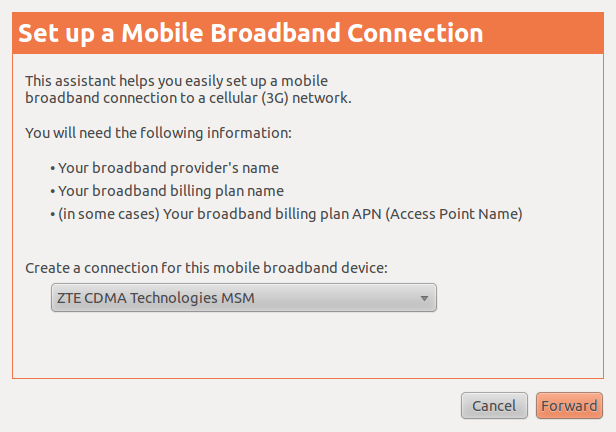
Months ago I got a ZTE MF627 USB modem from Telecom New Zealand. It’s essentially a cell phone the size of a usb memory stick. There it is known as a T-stick, here in Ottawa, Rogers sells it as the Rogers Rocket stick. It didn’t work when I tried it initially, something to do with the kernel version that Ubuntu was using at the time. Well a few versions have ticked by and now I am running 2.6.35-28-generic and decided to give it another try. I am happy to say that this won’t be a post about solving a problem. I plugged it in, clicked through a wizard, and it works. You get to the wizard by right clicking on your network icon, selecting “edit connections” and in the Network connections box that opens click “Mobile Broadband” and then add. All the info about APN settings and whatnot are in there once you say what provider you are with. I am really impressed with how easy it was. The only downside to the whole thing is that it takes a minute or two to get connected once you plug it in. Other than that I am really pleased with how easy they made it to get this thing working. Kudos!

Splitting Flac files on Ubuntu

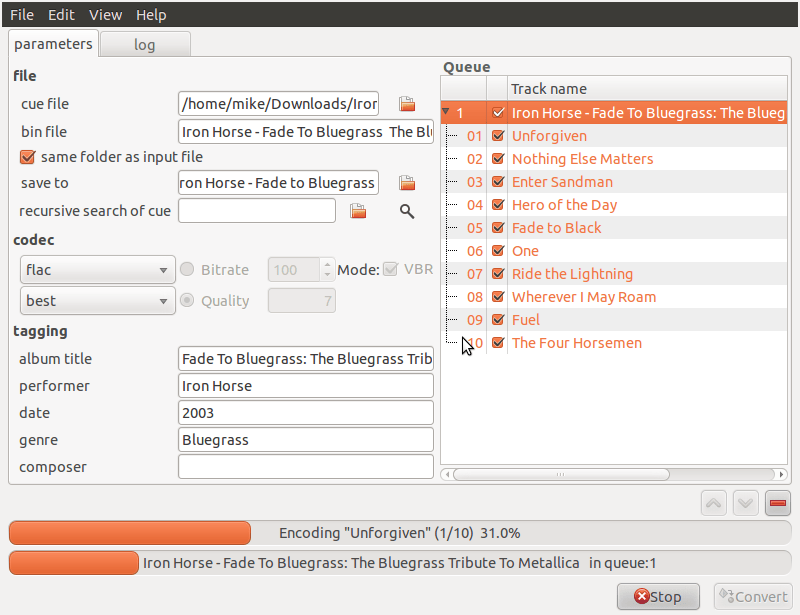
There have been a few occasions where I have found myself with an album saved as a single flac file, a cue file and no idea what to do next. Well it turns out that splitting flac files according to a cue sheet is a pretty easy thing once you have the right software. The right software in this case is the rather unlikely-to-ever-turn-up-in-your-google-search program gCue2tracks.

Splitting files with gCue2tracks

Its simple enough that it really doesn’t warrant any explanation. Simply point it to the cue file and click convert. It works on flac, ape and several other files. An easy to install deb file can be found here. If it complains about needing “oggenc” when you try to use it just run “sudo apt-get install vorbis-tools” and it will install the ogg encoder gCue2Tracks is looking for. Likewise if you ask it to save as flac it may complain that it can’t find “flac”… the solution is “sudo apt-get install flac”.

For the moderately more adventurous, pulling the current version from the repository is also an option. It will get you the current version (5.2) but there are no any significant changes since 2010. Its easy to do in any case:

sudo apt-get install mercurial #so you have the hg command installed
hg clone http://trac-hg.assembla.com/gCue2tracks/
cd gCue2tracks
./gCue2tracks.py

Of course if you run it like that, make sure you have installed its dependencies with “sudo apt-get install cuetools shntool libav-tools”.

Scripting MySQL database setup for Rails with Bash

I am working a bash script to set up a complicated application. As part of that setup I need to run a series of SQL commands to create the initial users and databases this app will require.

It turns out you can get mysql to execute arbitrary statements from the command line using the -e switch but that would be both ugly and tedious for a lot of statements. Sounds like a job for heredocs! Lets try it out:

mike@railsdev:~$ read -d ” test <<‘EOT’
create database test;
select 1;
EOT

mike@railsdev:~$ mysql -u root -ppassword -e “$test”
+—+
| 1 |
+—+
| 1 |
+—+

Perfect! I love it when things work the way you expect. On to useful stuff:

read -d ” MYSQL_SETUP <<'EOF'
create database myapp_test;
create database myapp_development;
create database myapp_production;
CREATE USER 'appuser'@'localhost' IDENTIFIED BY 'myapp_password';
grant all privileges on myapp_production.* to appuser@localhost;
grant all privileges on myapp_test.* to appuser@localhost;
grant all privileges on myapp_development.* to appuser@localhost;
EOF

mysql -u root -ppassword -e "$MYSQL_SETUP"

And then use the same trick to write a nice new database.yml for the app to use those credentials:

read -d ” DB_CREDENTIALS <<'EOF'
production:
adapter: mysql
database: myapp_production
pool: 5
username: appuser
password: myapp_password

development:
adapter: mysql
database: myapp_development
pool: 5
username: appuser
password: myapp_password

test:
adapter: mysql
database: myapp_test
pool: 5
username: appuser
password: myapp_password
EOF

read -d '' DB_CREDENTIALS < /var/www/myapp/config/database.yml

no such file to load — json?

While upgrading a project of mine to Rails 3 I stumbled upon a json error. I don’t know what exactly caused it since I have been upgrading from Ubuntu Karmic to Lucid in the past few days. Since this took a little head scratching I thought I would write it down here so I don’t forget. Hopefully it will save someone else some fooling around as well.
The error is coming from the jsvars plugin which is trying to call require ‘json’.

mike@sleepycat:~/projects/todasaulas$ rails s
=> Booting WEBrick
=> Rails 3.0.0 application starting in development on http://0.0.0.0:3000
=> Call with -d to detach
=> Ctrl-C to shutdown server
Exiting
/usr/lib/ruby/gems/1.8/gems/activesupport-3.0.0/lib/active_support/dependencies.rb:239:in `require’: no such file to load — json (LoadError)
from /usr/lib/ruby/gems/1.8/gems/activesupport-3.0.0/lib/active_support/dependencies.rb:239:in `require’
from /usr/lib/ruby/gems/1.8/gems/activesupport-3.0.0/lib/active_support/dependencies.rb:225:in `load_dependency’
from /usr/lib/ruby/gems/1.8/gems/activesupport-3.0.0/lib/active_support/dependencies.rb:591:in `new_constants_in’
from /usr/lib/ruby/gems/1.8/gems/activesupport-3.0.0/lib/active_support/dependencies.rb:225:in `load_dependency’
from /usr/lib/ruby/gems/1.8/gems/activesupport-3.0.0/lib/active_support/dependencies.rb:239:in `require’
from /home/mike/projects/todasaulas/vendor/plugins/jsvars/lib/jsvars.rb:1

It turns out that json is provided by libjson-ruby on Ubuntu so the fix was as easy as

mike@sleepycat:~$ sudo aptitude install libjson-ruby

I’m not sure why things were working before if that wasn’t there. Who knows all the stuff that gets changed in an upgrade. You learn something new everyday.

Firefox 4 Beta on Ubuntu

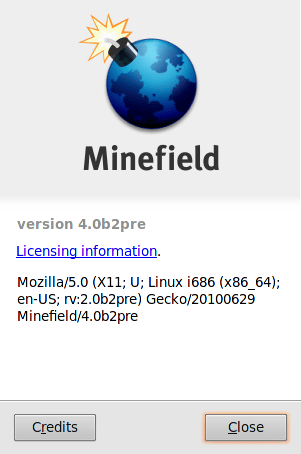
I am playing with the 64 bit version on Ubuntu Karmic and so far is seems pretty great. You can grab a copy here and, once unzipped into a directory you can run it by doing

chmod +x firefox

./firefox

Its generally feels snappy; opens quickly and loads the pages quickly. No crashes yet either. One serious downer is the lack of a 64 bit flash plugin which Adobe has recently withdrawn. Vendors have been selling 64 bit systems for years now, but for some reason Adobe hasn’t been able to release an official 64 bit flash plugin yet. So Mozilla finally launches a 64 bit browser and great swathes of the internet are unusable to anyone who uses it. Nice. No wonder Steve Jobs doesn’t like these guys. The speed the 64 bit gives is needed when dealing with Javascript intensive sites. The javascript driven Visual editor on WordPress, while sluggish at the best of times, is painfully slow with the Beta of 4. Even switching back to the tab running the WordPress editor is sluggish. On the other hand Google maps is noticeably faster and smoother at nearly everything.

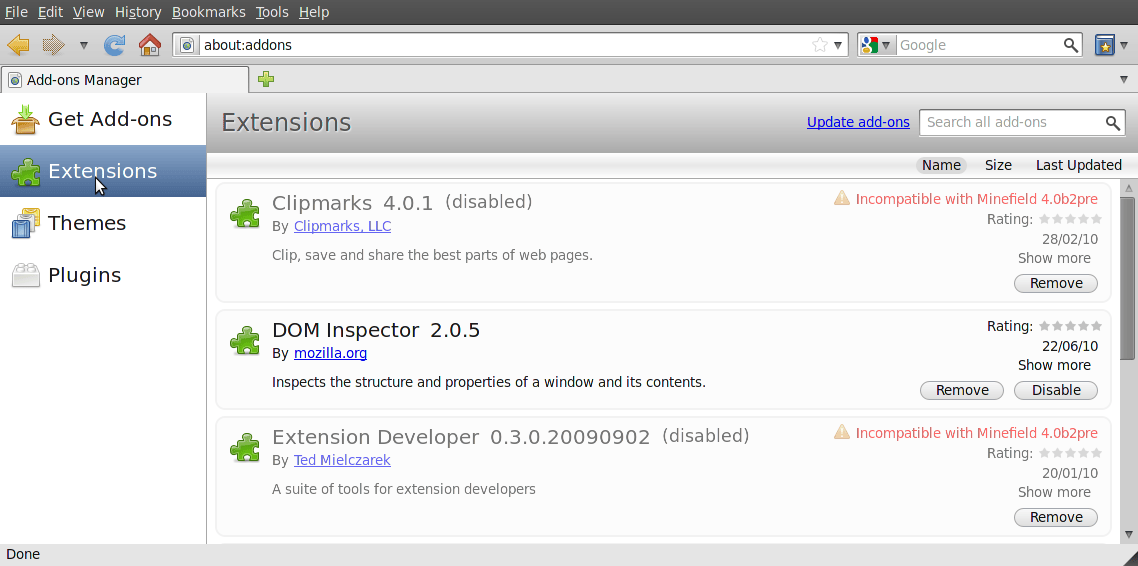
I am also excited by the new Add-ons manager. Mozilla is taking things that typically open a new window and making them run in a new tab instead. This is excellent since the Add-ons definitely require more space than the dialog they were appearing in allowed for. Its interesting that for all the seeming obviousness of the tabbed window design and how long its been around, browser makers are still working on fully integrating the concept into the browser.

My only disappointment so far is likely not an issue with Firefox at all. When I first saw the mockups I was excited to see that Mozilla was following Chrome’s lead in moving the tabs into the otherwise underused title bar. While I love the screen real estate that Chrome gives, it hasn’t been enough to tempt me away from all the amazing plugins that Firefox has.

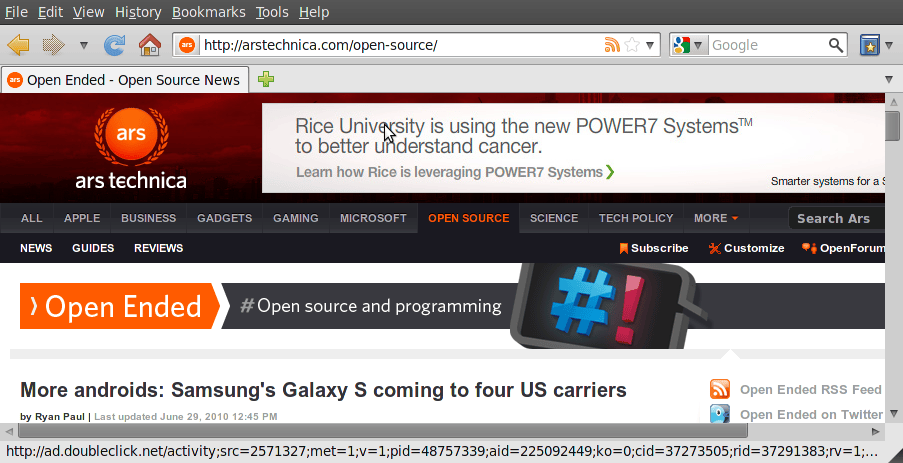
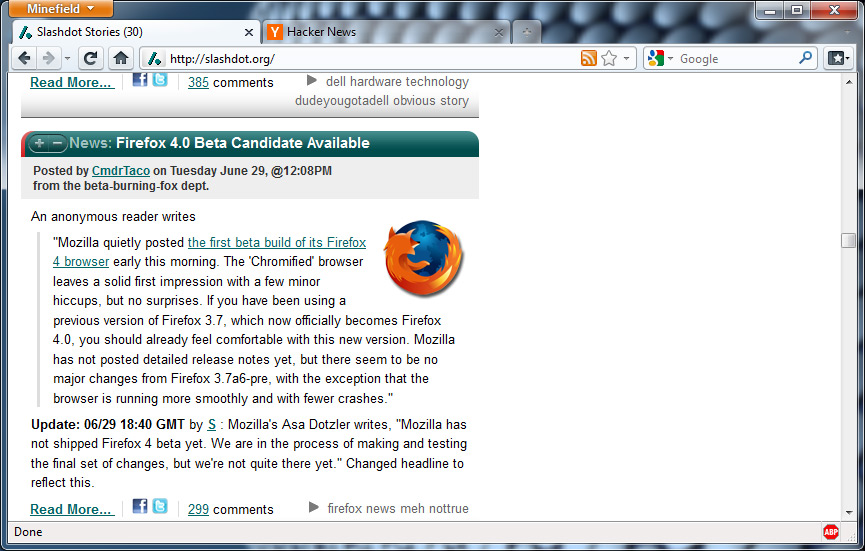
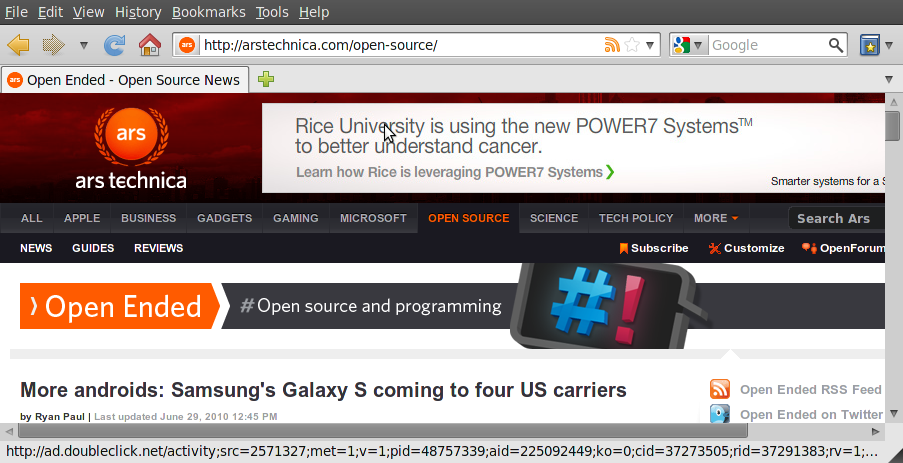
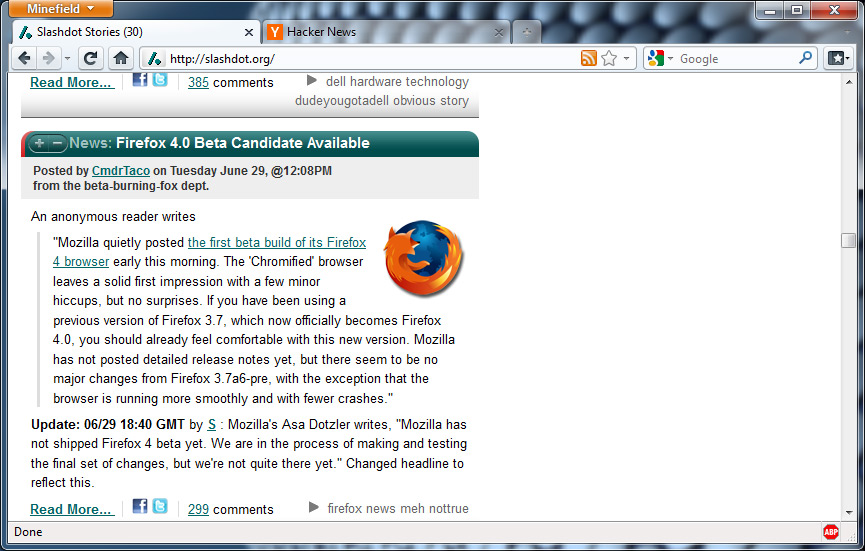
Version 4 was supposed to mean that I got to have my cake and eat it too, adding the look of Chrome to the browser I already use.However while Windows users get the Chrome like interface, on Linux they have merely simulated the effect by hiding the bookmarks toolbar. Irritatingly, the Windows 32bit version gets the full treatment, tabs on top, File, Edit and Bookmarks all hidden away until you hit the ALT key. Its pretty sexy.

Disappointing but my suspicion is that it likely has something to do with the way windows are handled by Gnome, rather than anything to do with Firefox. Hopefully that will be sorted out with Gnome 3. For the moment, fast is good enough.